Gmail POP3 Is Being Discontinued: How to Receive External Emails Securely
If you have been using Gmail to collect emails from your work account or internet provider via POP3, it is time to review your setup.
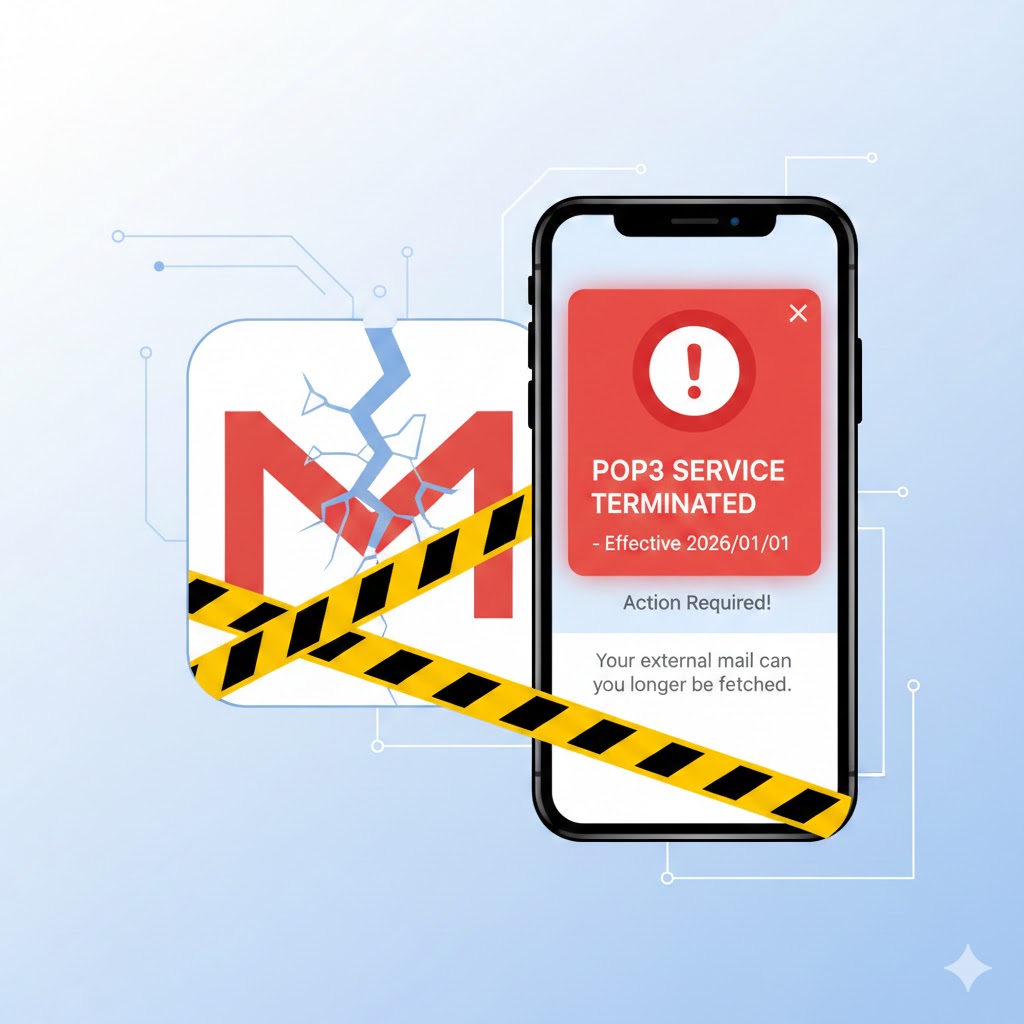
Starting in January 2026, Gmail will discontinue support for receiving external emails through POP3 and Gmailify. I had relied on this feature for years, and when I learned about the change, I personally tested several alternatives.
In this article, I will explain what will happen, why it matters, and the most reliable way I found to continue receiving external emails securely, based on real-world testing.
- What Happens When Gmail POP3 Is Discontinued?
- Why Many Users Relied on Gmail POP3
- Two Common Alternatives — And Their Hidden Pitfalls
- What I Tested Personally — And What Actually Worked
- The Best Solution: Email Forwarding Plus SMTP Setup
- How to Set Up Email Forwarding and SMTP in Gmail (Overview)
- Common Mistakes and Risks to Avoid
- Why Google Is Moving Away From POP3
- Conclusion: Prepare Before Gmail POP3 Is Fully Removed
- Reference and Disclaimer
What Happens When Gmail POP3 Is Discontinued?
When POP3 support ends:
- External emails will no longer be pulled into Gmail automatically
- Gmail’s spam filtering will no longer protect those emails
- Replies may default to your Gmail address instead of your original address
For users who manage multiple email accounts inside Gmail, this is not a minor change—it directly affects security, convenience, and workflow.
Why Many Users Relied on Gmail POP3
Before discussing alternatives, it’s important to understand why POP3 was so widely used.
Spam Protection Through Gmail
Many legacy mail systems and provider email accounts have weak spam filters. By pulling emails into Gmail, users benefited from Google’s AI-driven spam detection.
In my case, spam volume dropped dramatically after switching to Gmail POP3.
Access Emails Anywhere
With Gmail, emails could be checked from any device without logging into multiple services. It simplified both personal and business communication.
Replying From the Original Address
Gmail allowed users to reply using the original email address via SMTP settings, making communication appear natural and professional.
Two Common Alternatives — And Their Hidden Pitfalls
After the POP3 announcement, I tested the most commonly suggested alternatives.
Email Forwarding (Works, but Has Limitations)
Setting up automatic forwarding from the original mail server to Gmail works well for receiving messages.
- Pros: Gmail spam filtering still applies.
- Cons: Replies default to your Gmail address unless SMTP is configured. SMTP setup can also be technically demanding.
Using IMAP in the Gmail App (Convenient but Less Secure)
IMAP allows Gmail apps to view external emails directly.
- Pros: Quick and easy to set up.
- Cons: Emails are not stored on Google’s servers, and Gmail’s spam filtering does not fully apply.
In practice, this turns Gmail into a viewer rather than a secure filter. For users focused on security, IMAP alone is not enough.
What I Tested Personally — And What Actually Worked
After comparing both methods, I concluded that email forwarding alone was insufficient, and IMAP was unreliable from a security perspective.
The only approach that preserved Gmail’s advantages was:
Email forwarding combined with proper SMTP configuration.
This setup takes more effort initially but delivers long-term stability.
The Best Solution: Email Forwarding Plus SMTP Setup
Why This Method Preserves Gmail’s Spam Filtering
Forwarded emails are processed by Gmail’s servers, allowing Google’s AI spam detection to function normally.
Why SMTP Configuration Matters
SMTP allows Gmail to send emails from your original address, avoiding reply mismatches and maintaining professional communication.
This dual setup closely replicates the original POP3 experience.
How to Set Up Email Forwarding and SMTP in Gmail (Overview)
The exact steps depend on your email provider, but the overall flow looks like this:
- Enable automatic forwarding on your original mail server.
- Confirm forwarded emails are arriving in Gmail.
- In Gmail settings, open Accounts & Import and add the original email address.
- Enter SMTP server details provided by your email provider.
- Send a test email to verify both sending and receiving.
Exact SMTP values vary by provider, so always check official documentation.
Common Mistakes and Risks to Avoid
Losing Emails During Transition
Do not delete messages from the original server until the new setup is stable. Keep a backup period during the migration.
Two-Factor Authentication Issues
Many providers require app passwords rather than standard login passwords for SMTP access. If your normal password fails, check whether two-factor authentication or app-specific passwords are required.
Mailbox Storage Limits
With forwarding enabled, old mail servers may fill up quickly. Periodic cleanup or backups are recommended so that new emails are not rejected due to lack of space.
Why Google Is Moving Away From POP3
While Google officially cites security improvements, several broader factors may be involved.
One possible reason is that Google has already gathered sufficient data to train its spam-detection systems. Another is the rise of global privacy regulations such as the EU’s GDPR, which increase liability risks when handling externally sourced emails.
These interpretations are based on publicly available information and the author’s personal analysis, and should not be taken as official statements from Google.
Conclusion: Prepare Before Gmail POP3 Is Fully Removed
Gmail’s POP3 discontinuation marks a major shift, but it does not mean losing Gmail’s advantages.
From my experience, the most reliable approach is:
- Do not rely solely on IMAP for external accounts.
- Use email forwarding so that Gmail can still filter spam.
- Configure SMTP correctly so you can reply from the original address.
This method preserves security, usability, and professionalism.
With January 2026 approaching, addressing this now will help prevent lost emails and reduced spam protection later.
Reference and Disclaimer
This article is based on the author’s personal testing and publicly available information. It is not a reproduction or summary of any specific video.
Reference Video:
Gmail POP3 Discontinuation Overview
https://m.youtube.com/watch?v=BYNO__AYXAI
Information is accurate at the time of writing. Always check Google’s official documentation for the latest updates.